GRWM while I tell u abt the desktop setup i used to mainframe-mog ASU Unix club leader. (NO LARPING)
I finally set up a Linux distro as my main system! It feels like I’m a pretty late trend-hopper, but I am here nonetheless (After a bazillion different tries).

I will now share some upsetting facts about the Windows OS in hopes that you will become emotionally invested and read the entirety of the article.
Everything that’s wrong with Windows
- Reason 1: Crazy telemetry
- Reason 2: Crazy bloat
- Reason 3: History of being completely untrustworthy (https://www.thepoint.online/microsoft-worthless-windows-11-promises-2026/)
- …
- Reason infinity: Closed source 🤮🤢
Now, to show you that I am being completely impartial, I’ll list out some points in favour of Windows:
- Reason 1: Runs Valorant
Now that we have established the reason why I decided to set out on this arduous quest, let’s start!
Fedora vs. 10,242,500+ other options #
There are so many options for Linux distributions that I didn’t really bother doing much research; partly because there was a lot of terminology involved that I couldn’t understand until I tried it myself, but also because I already had Fedora Server as my homelab system for a while and hadn’t run into trouble with it yet. Fedora had frequent enough updates and came packaged with a lot of the software I needed as someone who is more hands on with their computer. That is as clear and specific as I can be.
It totally depends one one’s personal priorities. 🤷 https://linuxblog.io/best-linux-distro/
Gnome Desktop Environment #
I got to try an enormous amount of desktop environments before landing on my favourite. I have tried Xfce, Budgie, KDE Plasma and none of them made as much sense as Gnome.
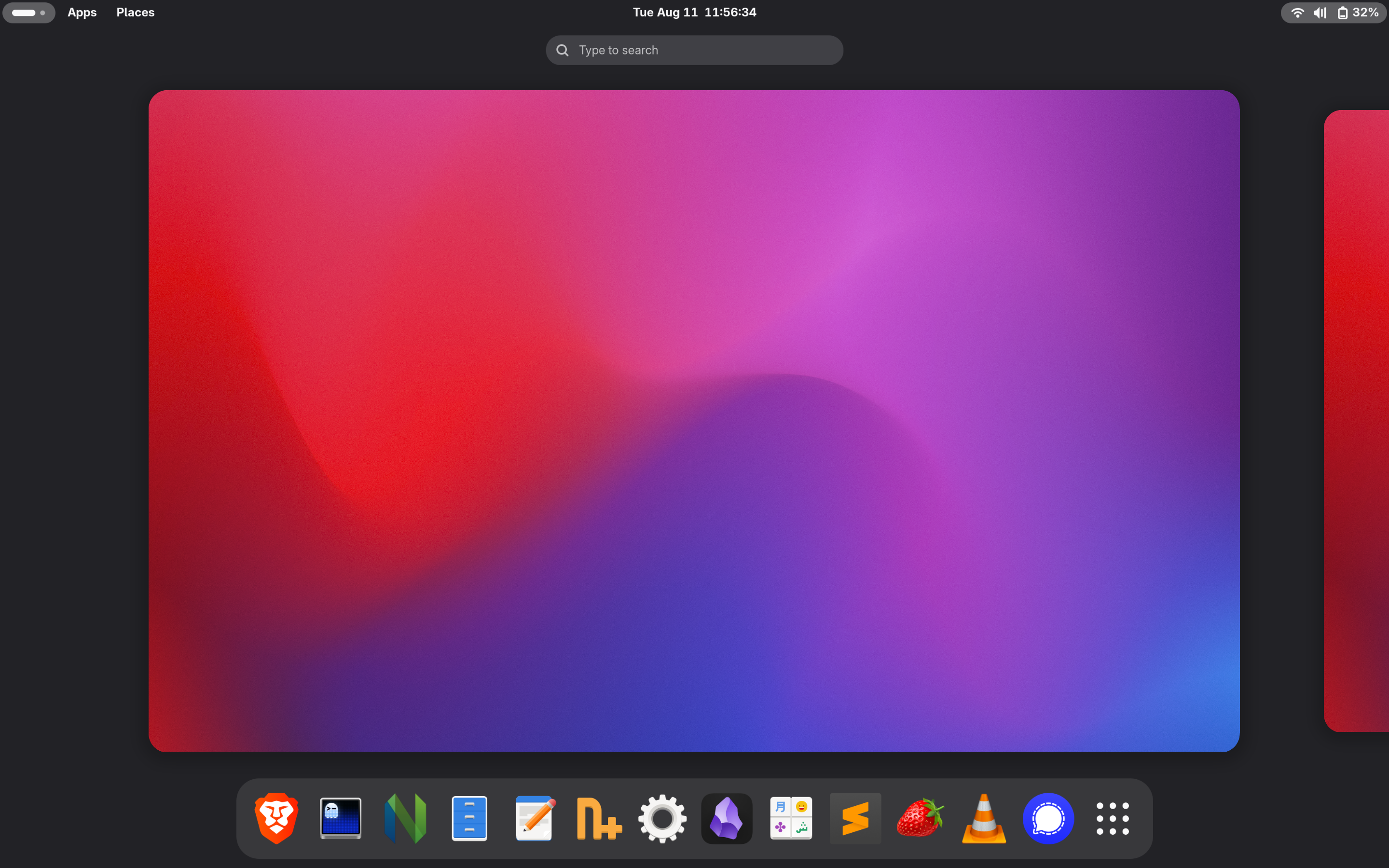
“It looks like a knockoff MacOS” - Zahra 2026.
Gnome had a pretty familiar feel relative to Windows so it worked fine at the beginning. Over time, however, actions as minimal as switching between windows or desktops became a hassle because I’d always have to go back and forth between the track-pad and keyboard. After looking into possible solutions, I decided to switch to Sway window manager for two reasons:
- Switch between work spaces + windows without taking my hands off the keyboard.
- Get one step closer to my life’s end-all goal of 100% keyboard-based computer navigation.
Sway window manager #
Because my computer originally had the Gnome spin of Fedora, I installed SwayWM using the dnf package manager instead of flashing with the Sway-Fedora spin and having to erase all the data on my drive.
The source of most of my pain when setting up Sway for the first time was a “small” confusion I had between the concepts of a window manager and a full-fledged desktop environment. To my dismay, I couldn’t find a settings or camera app or any of the normal shortcuts like screenshots and volume/brightness controls that were prepackaged with the Gnome DE.
But no matter, I persisted. I re-created my most-used shortcuts for WiFi, Bluetooth, sound, and custom apps in the Waybar. We’ll get into that later, but first, the aesthetics had to be taken care of ASAP. The default configuration was uhh… not too easy on the eyes…
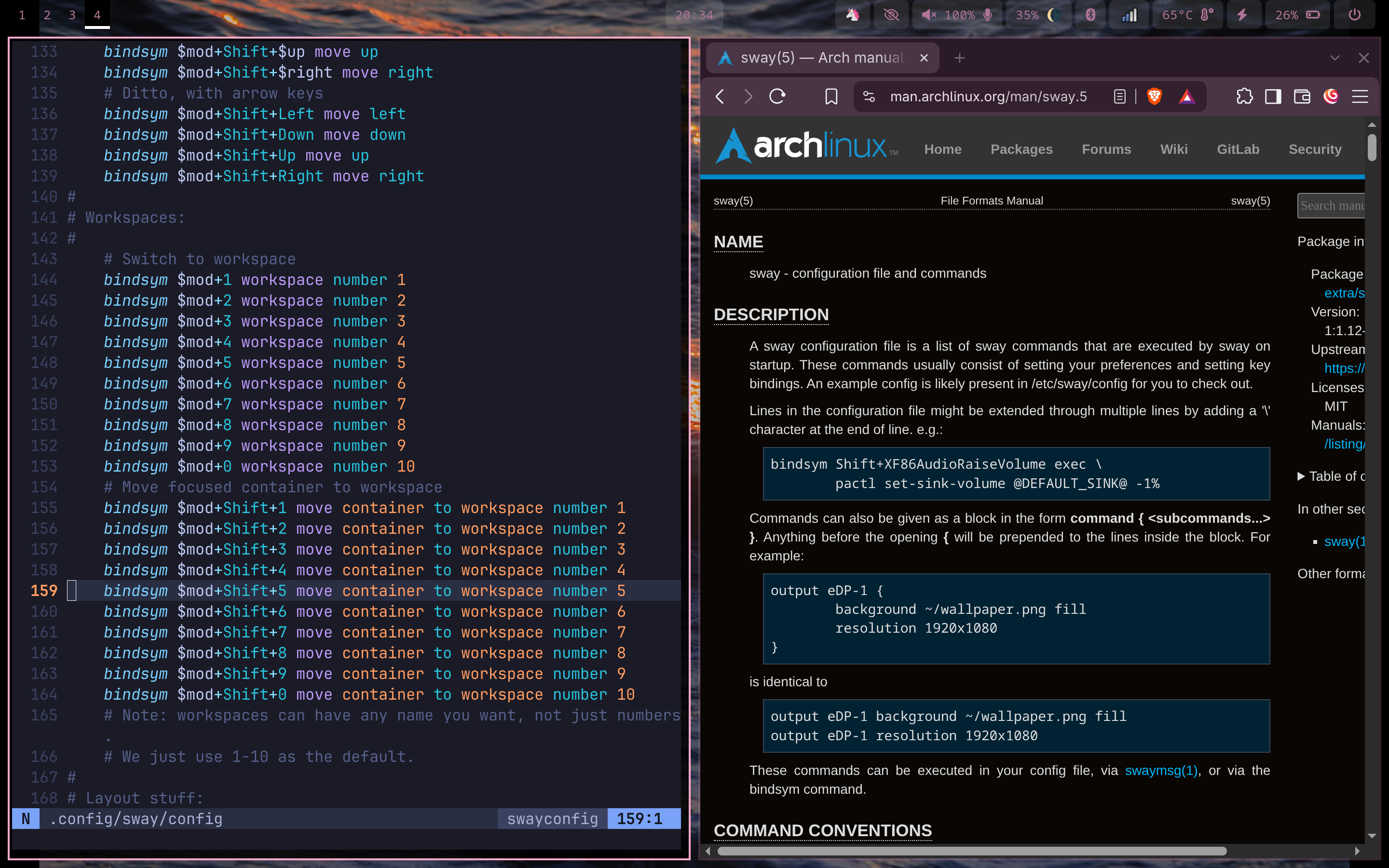
Compact list of everything I changed to go from 😣 to 😁
- Removed all the borders and colours from the windows.
- Added small
5pxpadding to windows for a nice floating effect. - Added a thin pink border to allow differentiating between focused and out-of-focus windows
- Changed the super key
$modfromWintoAlt, which allows me to have a super key on both sides of the keyboard. - Changed the window-close shortcut from
$mod+Shift+qto$mod+qbecause I don’t want to play finger Twister trying to close a singular app.
And the final result 😈⬇️
It takes a while to get used to moving everything around the different work spaces, but there are two things that I’ve found were of significant help and worth mentioning:
-
Scratchpad! The greatest invention of all time?!?! Wow, using it for the first time felt like I was the first human discovering the wheel. It allows you to put any number of windows in the back burner and pull them back up whenever you want! The best thing is that it’s shared between work spaces, so I find moving windows using the scratchpad a lot better than $mod+workspace_number. There’s no prose I can scribble or poem I can compose that will convey the beauty of it as clearly as using it.
-
Dedicating work spaces to specific applications. This one I owe to my dear friend Cale (shout-out, name-drop). For example, I’m always keeping my messaging app on the last workspace. Instead of moving it to the scratchpad when I don’t need it, or having to move it between work spaces, I simple switch to my last workspace using $mod+0 and I’m there.
Interesting thingalang #
I’m pretty sure there isn’t a limit to how high the sound level can go when pressing the Sound-Up key continuously.

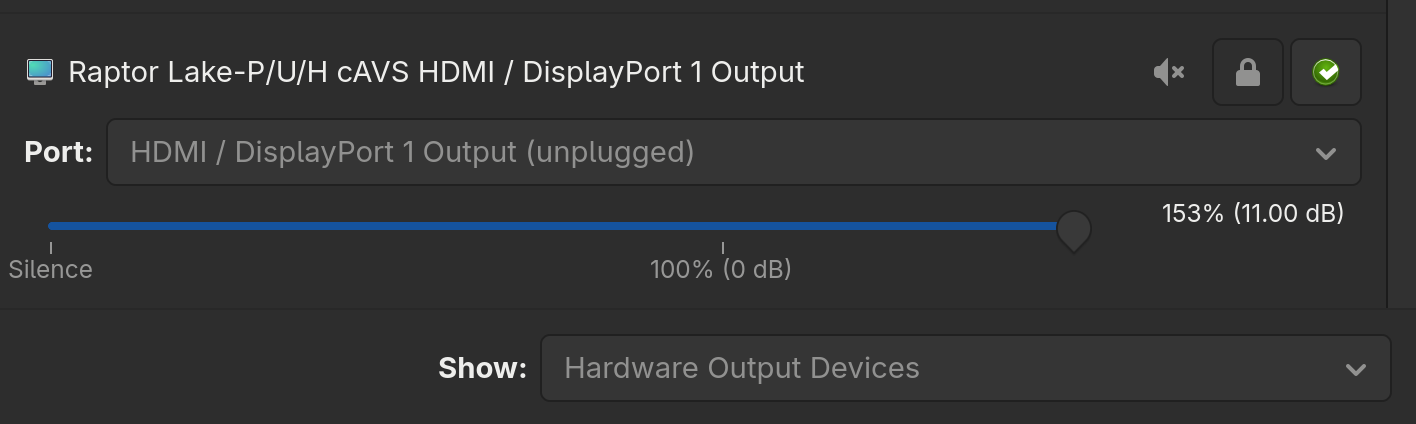
The maximum volume is capped to 153% on the graphical application thanks to the physical limit of the scrollbar, but using the sound-up key with the following binding allows me raise the volume infinitely
# ~/.config/sway/config

bindsym --locked XF86AudioRaiseVolume exec pactl set-sink-volume \@DEFAULT_SINK@ +5%
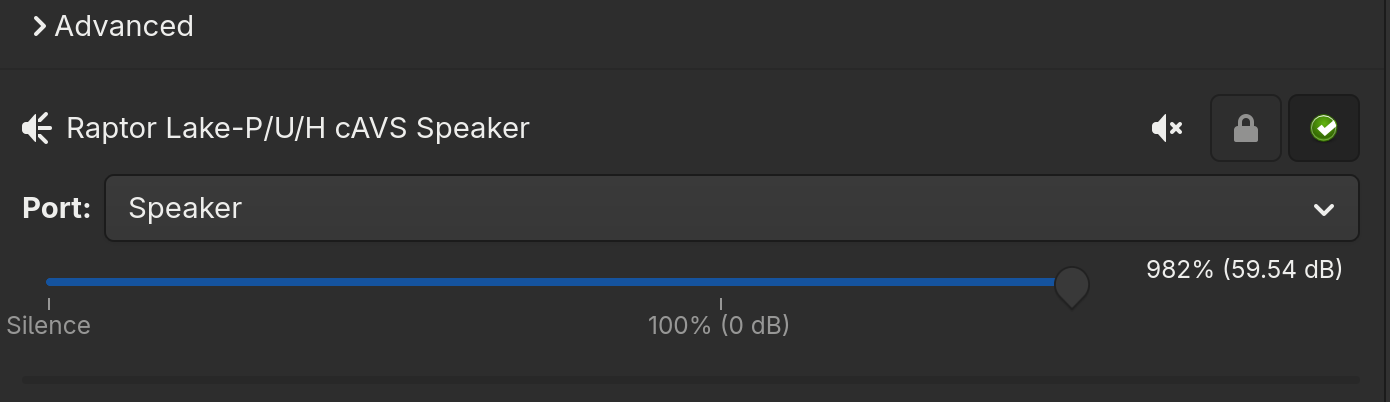
Theoretically, at a certain point it would be loud enough to equip me with the ability to blast the entirety of the National Capital Region with SAILORR’s latest album. Unfortunately, this feature/bug (depending on the way you look at it) is not reflected in the physical volume the speakers are able to emit. My plans will have to be postponed.
WayBar #
Waybar is basically a Windows taskbar but it’s uglier and everything is harder to set up. Using it, however, is scientifically shown to make you better than everyone else.
The default look was not to my taste. I can’t imagine it being to anyone’s taste, really. 😬
And that’s fine, because Waybar is especially customizable!

I owe it to mention that you could end up with your screen covered by 6 WayBars just by calling the binary 6 times.

.lock file or some kind of mutex.
The default configuration didn’t work out of the box. It tried calling pavucontrol, which I didn’t have installed. It also fetched the wrong file for temperature, so for the first 48 hours I was under the impression that my laptop consistently ran at 17 degrees Celsius… Yikes.

Fixing the temperature display #
TLDR: The right file to fetch the core temperature is "/sys/class/hwmon/hwmon4/temp1_input", but the default config file used "/sys/class/hwmon/hwmon2/temp1_input".
hwmon is Linux’s hardware monitoring kernel API, and through it the kernel fetches and relays hardware state, like core temperature. To explain it briefly, each hwmon*/ directory provides the status of a different device. The file hwmon*/name displays the name of its corresponding device, whether it be the battery, CPU, or SSD… etc.
On my laptop the hwmon2/name file displayed BAT0, meaning hwmon2/temp1_input was grabbing the battery temperature, not core temperature. This resulted in Waybar fetching the temperature of my laptop battery and displaying it as my core temperature instead.
I found the core temperature by looking for coretemp in one of the hwmon*/name files, which happened to be hwmon4/name. Therefore concluding that I can grab my system’s core temperature from "/sys/class/hwmon/hwmon4/temp1_input"
The final configuration looks like:
# ~/.config/waybar/config.jsonc
"temperature": {
"hwmon-path": "/sys/class/hwmon/hwmon4/temp1_input",
"critical-threshold": 80,
"format": "{temperatureC}°C {icon}",
"format-icons": ["", "", ""]
},
Connecting to a WiFi network through the terminal (All the juicy deets) (YOU WILL NEVER GUESS WHAT HAPPENED! 😱) #
I was intruding on one of my friend’s lectures at uOttawa, as I usually do, and realised my laptop wasn’t automatically connecting to my phone Hotspot as it usually did. But without internet access, I wasn’t going to find a 5-minute article to show me exactly how to connect to a new network via terminal! It took me a few moments to realise the gravity of this inescapable situation. My heart rate sped up to 200 bpm and I passed out for 5 minutes.
As I awoke and laid my eyes upon this new reality (the chrome Dino), I knew no one would be able to save me but me. So, as any responsible adult would, I pulled myself up by the bootstraps and decided to look at some --help and man pages.

I had already heard about nmcli as a network utility from my much nerdier friends, and so I got to work. After fucking around for a good 10 minutes, I was still unsure of the configuration options: nmcli --help, man nmcli.
It seemed like the following might work but it didn’t. It just added the connection profile to my computa’s arsenal…
nmcli c add type 802-11-wireless ssid "my_ssid"
After sharing my chagrin with a dear friend, I was notified of the existence of nmtui – a terminal user interface for NetworkManager. It allowed for some visualisation of the process of connecting to a network. With nmtui it was as easy as choosing the activate connection option and entering the password. I made do with it until I got my hands on nm-applet 😼.
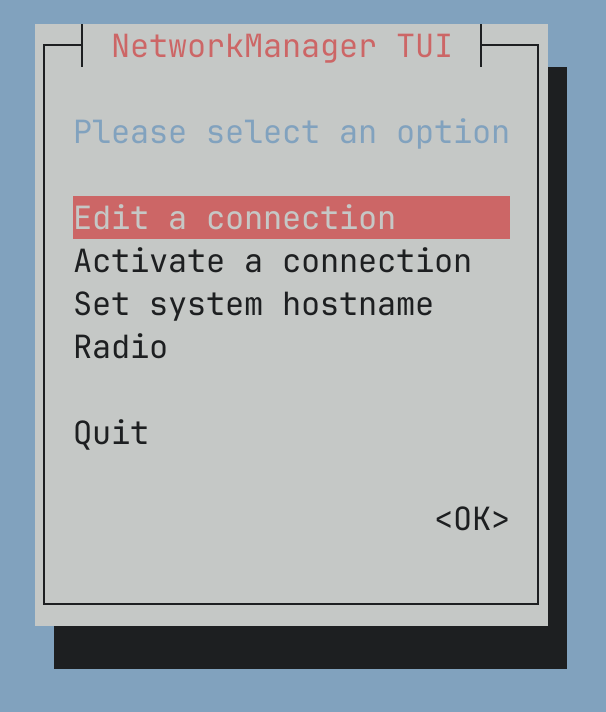
I can’t remember if nm-applet usually ships with any of Fedora’s spins, but it wasn’t automatically called when Sway started on my machine. I had to explicitly run it every time Sway initialised/started:
# ~.config/sway/config
exec nm-applet
It’s a good enough GUI and has just enough functionality for connecting to my home WiFi or mobile Hotspot, so it does the job 99% of the time.
Adding a Bluetooth applet #
Trying to pair and use Bluetooth devices through a terminal would be just as painful an experience as WiFi. Instead I looked into graphical solutions to my problem and found blueman-manager, which is a application for managing Bluetooth devices. All that was left was adding it as a shortcut the status bar, which I did by modifying the Waybar config file
# ~/.config/waybar/config.json
"custom/bluetooth": {"format":"", "on-click":"blueman-manager"}
It was still bothersome because opening the blueman-manager changed the pre-existing tiled window set up. It’d just squeeze itself into whatever layout I already had and mess up everything.
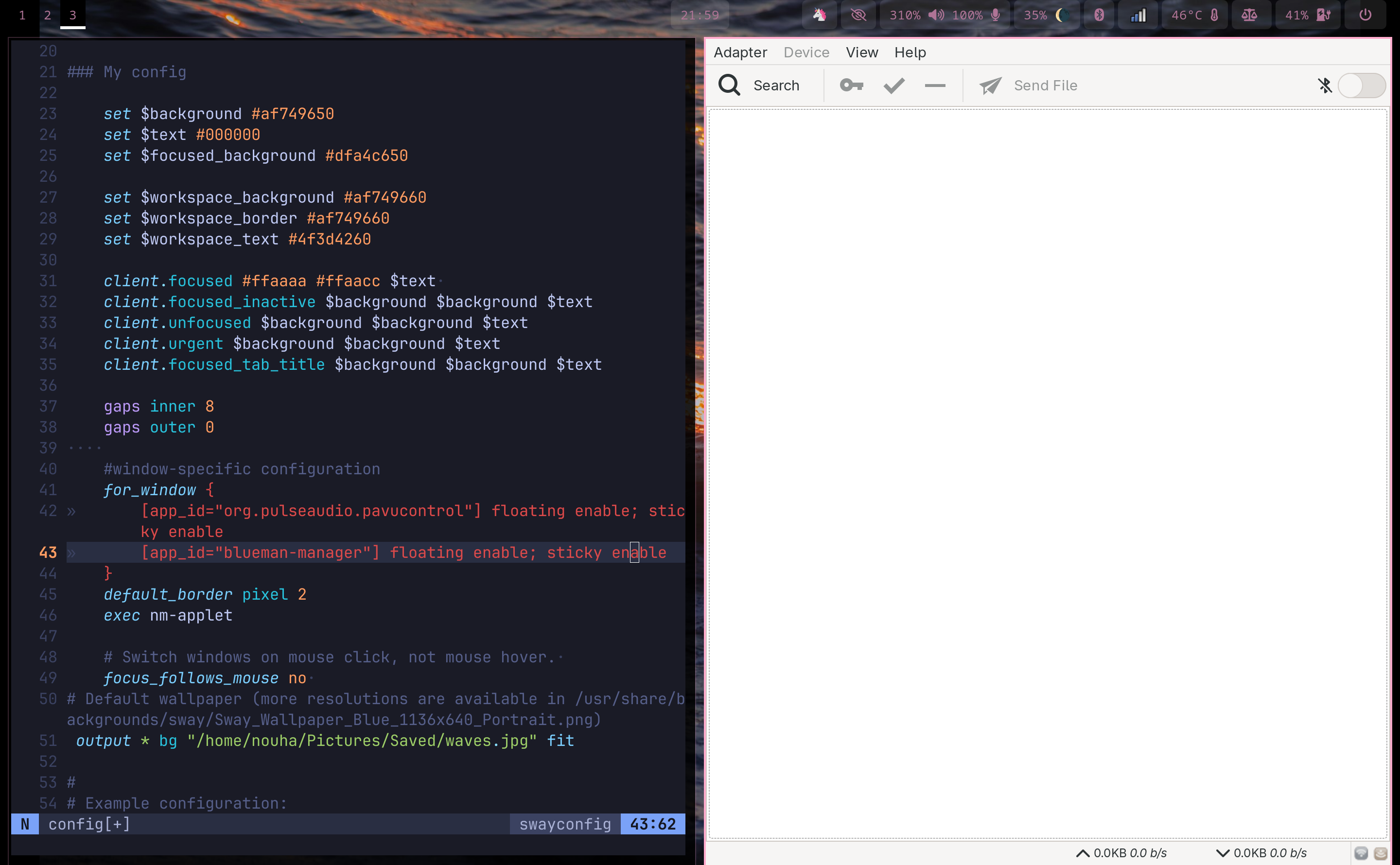
Through Sway’s configuration, I made all blueman-manager window instances start as floating windows instead.
# ~/.config/sway/config

for_window {
	[app_id="org.pulseaudio.pavucontrol"] floating enable; sticky enable
	[app_id="blueman-manager"] floating enable; sticky enable
}
With this configuration, opening blueman-manager through the Waybar shortcut resulted in a pop-up!!
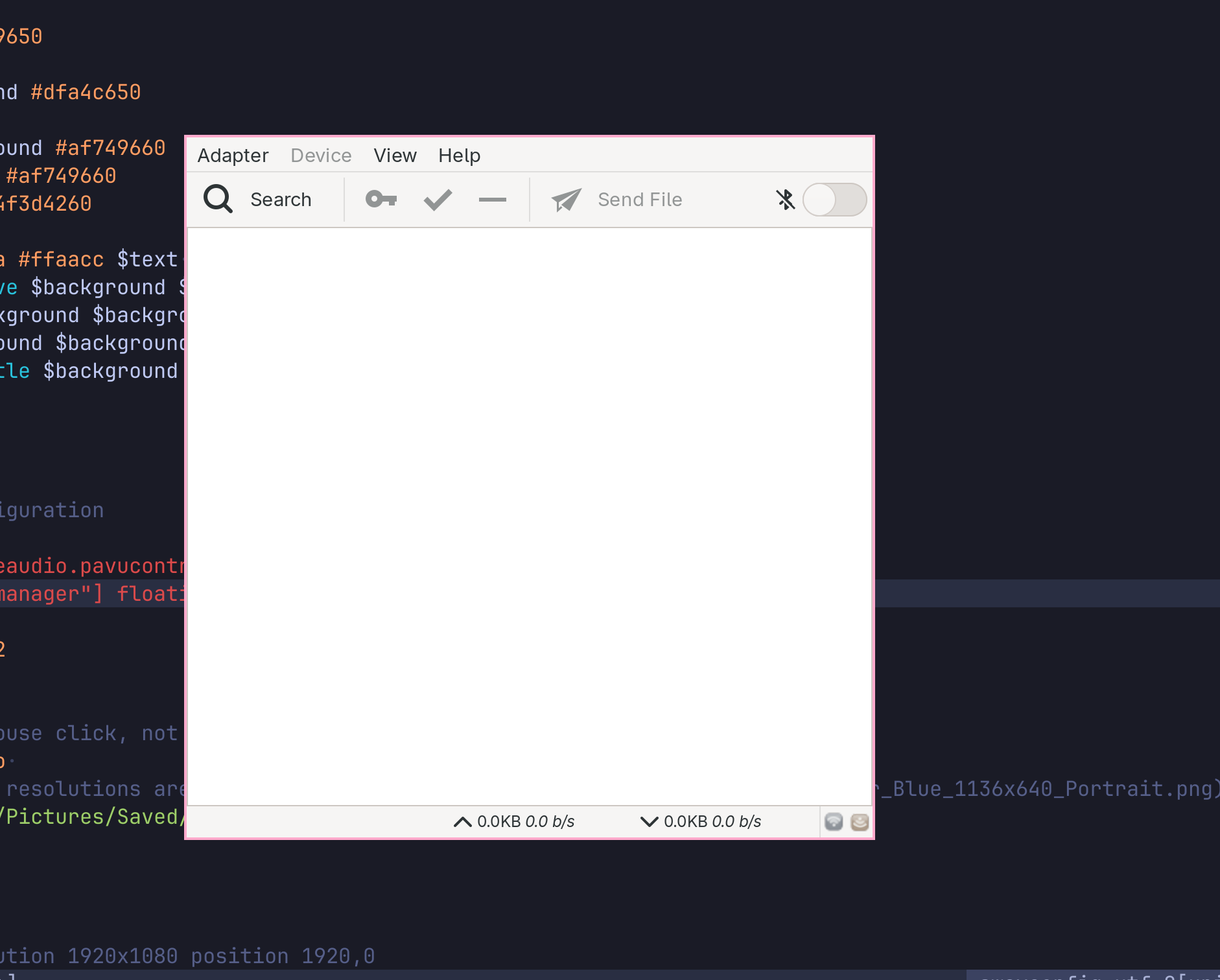
(I did the same thing for the sound+audio management app pavucontrol if you hadn’t noticed.)
Yay!
Ghostty as the main terminal #
First of all, I was never going to use fuckass “foot” as my terminal. I had no reason for switching out the default terminal emulator other than the horrible name.
I chose Ghostty for a reason I can no longer recall.
And as the wise Tamara once said:

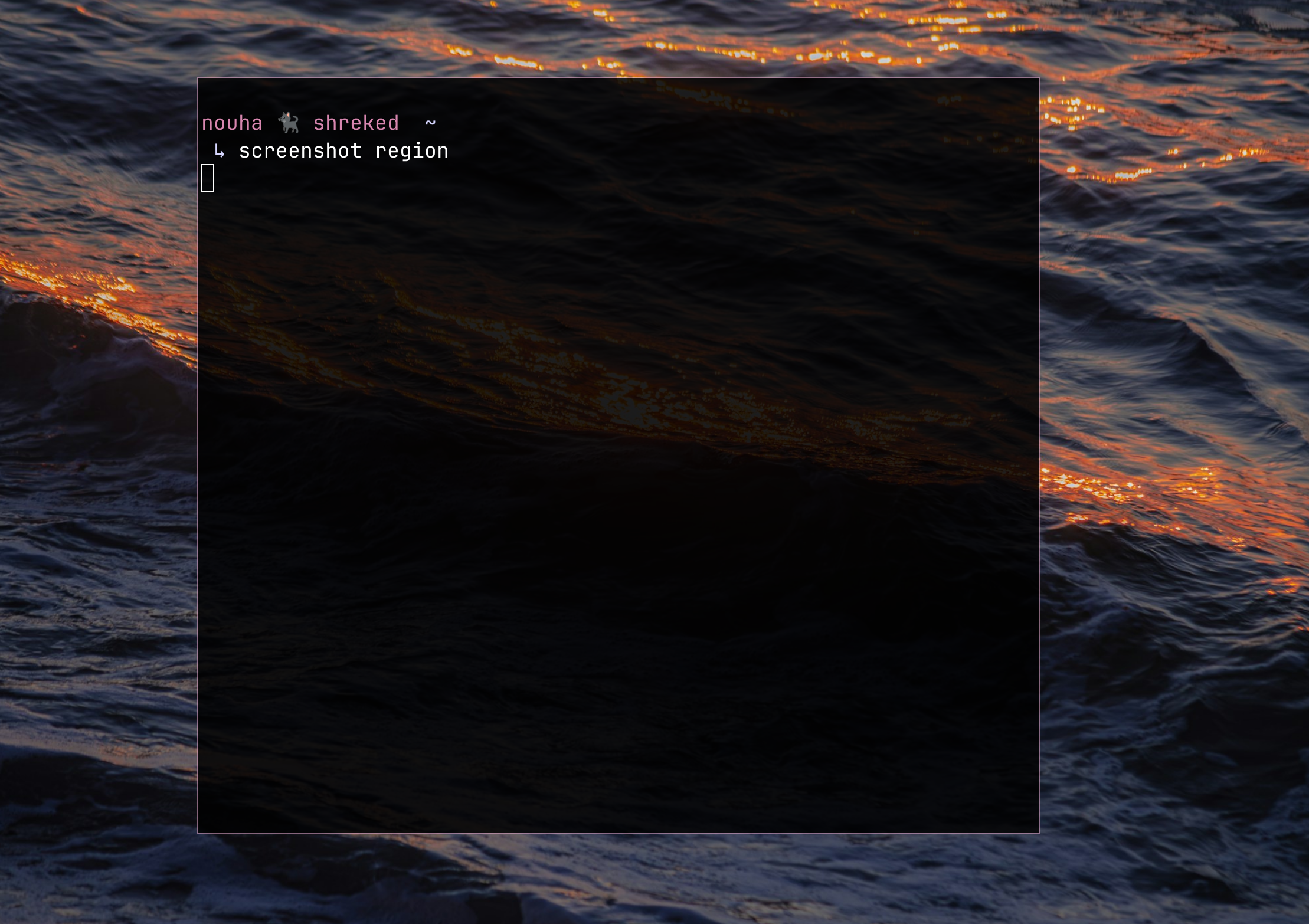
The terminal is where I spend the most time, so I thought I’d spend time making it nice-looking. I changed the background to a translucent black, made the border a thin pink, and even customised the bash prompt.
(Peep the cat 😏)
Rofi app launcher #
The default app launcher that comes bundled with SwayWM, dmenu, is just a bar at the top of your screen that pulls executables from your $PATH directories.
I won’t settle for the default app launcher that is just a glorified /bin directory – it simply isn’t enough for my in day-to-day endeavours and arduous undertakings.
I knew I wanted a pop-up app launcher, and after digging around for a bit it seemed Rofi checked all the boxes. Rofi is both an app launcher and ‘window switcher’. It navigates the windows that are already running in addition to any apps you may want to start.
For example when installing Obsidian through Flatpak, it doesn’t show up when searching for “Obsidian” in dmenu. My dear Rofi on the other hand just gets me! Let’s just say it’s able to get more information about applications than their binaries.
In addition, it also had a reaaally long list of themes, which is more than perfect!
I’ll let the screenshots speak for themselves.
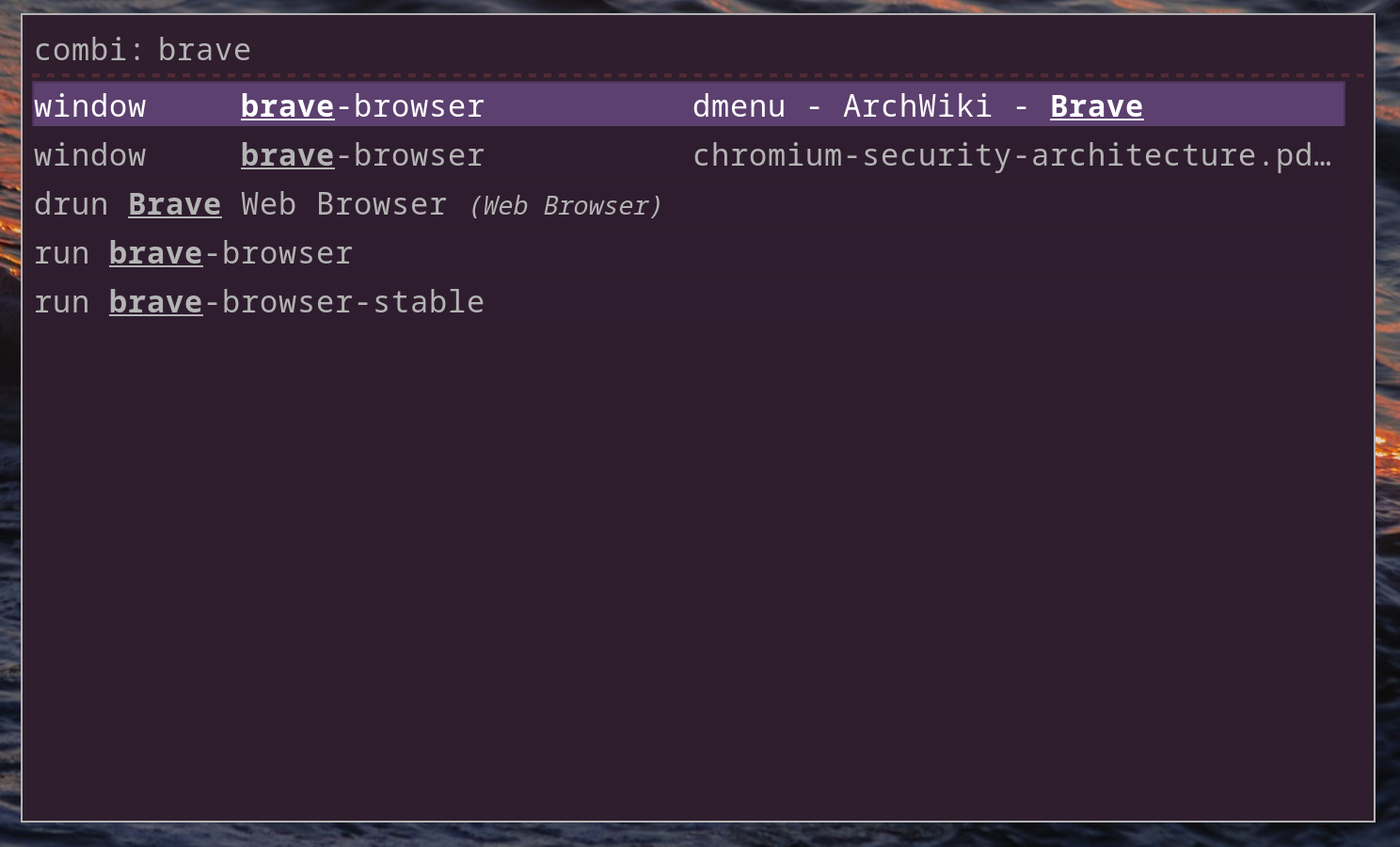
windowfor currently open windows.drunfor corresponding applications.runfor binaries found in$PATHfolders.
Pretty cool huh! 🤓
Screenshots #
The default screenshot key binding in Sway just called the grim utility, which took a screenshot of the full screen and didn’t even save it to the clipboard. Okay… well that’s grim. I need a little more functionality than that!
I switched out
`bindsym Print exec grim`
in ~/.config/sway/config for
`bindsyn Print exec ~/bin/sc`
Where ~/bin/sc is a bash script that prompts the user to select an area of the screen to screenshot, then both copies the screenshot to the clipboard and saves it in $DIR.
#!/bin/bash
DIR="$HOME/Pictures/Screenshots"
grimshot --notify savecopy area "$DIR/Screenshot-$(date +"%d-%m-%Y_%H:%M").png"
(I’m very aware that ~/bin isn’t the best placement for a screenshot scripts, I just… don’t care enough to look into a better alternative.)
btop #
btop is one of those applications that’ll make people unfamiliar with terminals wonder just how freaky of a computer freak you really are. Although the hunched back and sunken eye bags might be more obvious a hint.

(1:1 Visual representation of me at this very moment)
It’s helpful when needing a status update on hardware usage, although it’s very general and does not allow for complex manipulation of any processes. Coming from a Windows background, I can only compare it to the Task Manager and… it’s basically a better looking version of that with less functionality.
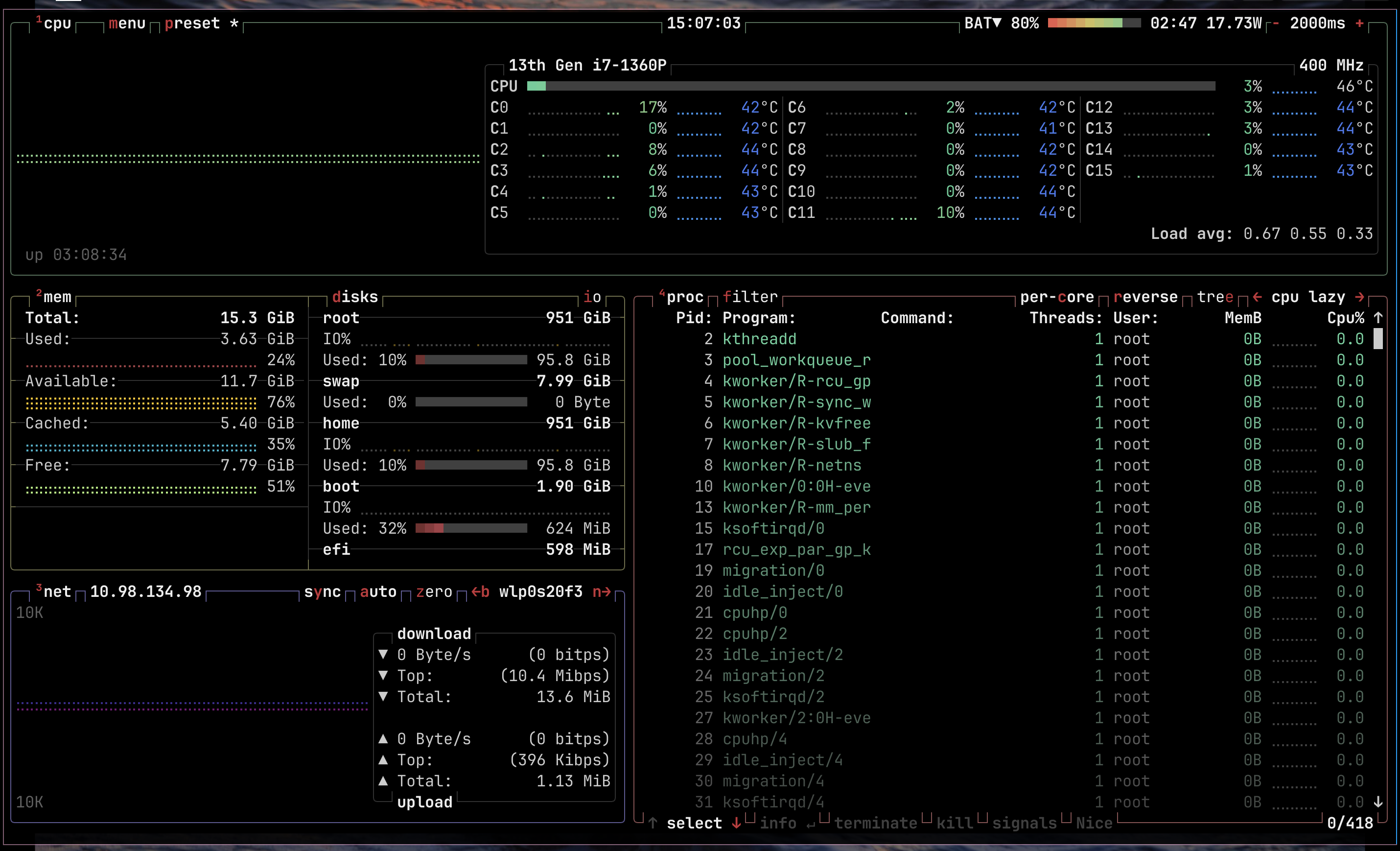
BUT it has different prepackaged themes for the aesthetically-inclined!
That’s it! #
That’s about it for major visual modifications.
I definitely had to do a bit more including setting up system backups, re-connecting all my devices with Syncthing, manually installing every app from my previous system, and don’t even get me started on partitioning an SSD using a live-boot OS.
If anyone is aware of ways stuff like network and firewall configurations, system configuaration, all installed apps, shortcuts… etc can be transferred over in a automated way, please let me know because this can’t be what I have to go through every time.
I don’t know what my next endeavour will be, I’ve found it difficult to pursue less instant forms of gratification recently. Life does that sometimes fr.

Until next time.